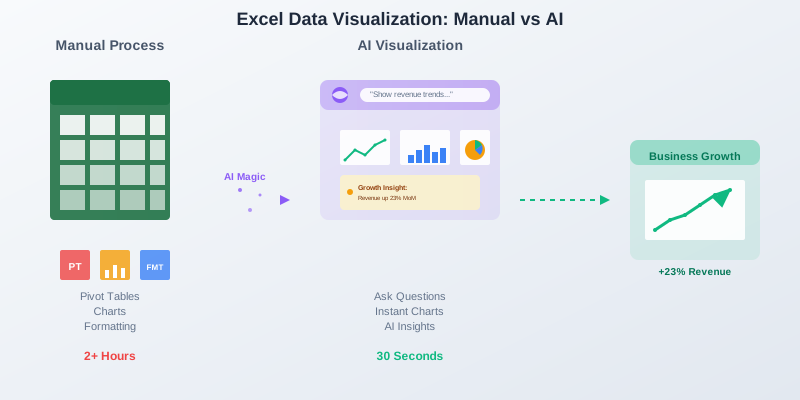
Best Way to Visualize Excel Data Automatically (Without Building Dashboards Manually)
If you’ve ever tried to build charts from a large Excel file, you know the struggle:
- Create pivot table
- Adjust fields
- Insert chart
- Fix formatting
- Repeat 10 times
- Realize the structure is wrong
- Start over
Visualizing Excel data manually is slow.
And most dashboards end up showing surface-level metrics — not real insights.
So what’s the best way to visualize Excel data automatically?
Let’s break it down.
🚨 The Problem With Manual Excel Visualization
When your spreadsheet has thousands of rows (sales, customers, transactions), creating charts manually becomes:
- Time-consuming
- Hard to maintain
- Error-prone
- Limited to what you manually configure
Most people visualize:
✅ Total revenue
✅ Monthly sales
✅ Orders by product
But rarely:
❌ Revenue concentration
❌ Customer lifetime tiers
❌ Repeat purchase segments
❌ High-value customer distribution
Because those require complex setup.
🤖 The Modern Approach: AI-Powered Automatic Visualization
Instead of building charts manually, AI tools:
- Read your Excel structure
- Understand columns (revenue, date, customer ID, product, etc.)
- Detect patterns
- Automatically generate relevant charts
- Highlight growth insights
You don’t build dashboards.
You ask questions.
Examples:
- “Visualize revenue by month.”
- “Show revenue concentration by customer.”
- “Break customers into lifetime value tiers.”
- “Visualize repeat vs one-time buyers.”
And charts are generated instantly.
📊 What Should Be Automatically Visualized?
The best automatic visualization systems don’t just show totals — they reveal structure.
Here are the most valuable Excel visualizations for ecommerce or revenue data:
✅ 1. Revenue Over Time
Line chart showing:
- Monthly revenue
- Trend direction
- Growth acceleration or slowdown
✅ 2. Revenue Concentration (Pareto Chart)
Bar + cumulative percentage chart showing:
- Top customers
- % of revenue they generate
- Whether 20% drive 70–80%
This is one of the most powerful growth visuals.
✅ 3. Customer Lifetime Value Distribution
Histogram or tier breakdown:
- High-value customers
- Mid-tier customers
- Low-value customers
Helps you understand segmentation instantly.
✅ 4. Repeat vs One-Time Customers
Simple bar chart showing:
- % repeat customers
- % one-time buyers
Retention clarity in seconds.
✅ 5. Product Retention Patterns
Which products:
- Generate repeat purchases
- Create one-time churn
Most Excel dashboards never show this.
🧠 Traditional Excel Charts vs Automatic AI Visualization
| Manual Excel | AI Visualization |
|---|---|
| Build pivot tables | Ask questions |
| Manually select chart type | Auto-select best chart |
| Risk of wrong configuration | Pattern-based insights |
| Static dashboard | Dynamic exploration |
| Time-intensive | Instant |
Manual dashboards show what you think to build.
AI shows what matters.
⚡ Why Automatic Visualization Is a Growth Advantage
Speed changes decisions.
If visual insights take 2 hours to build, you:
- Delay analysis
- Avoid deep segmentation
- Miss retention issues
- Ignore revenue concentration
If insights appear instantly:
- You explore more
- You test assumptions
- You identify growth levers faster
Automatic visualization removes friction between data and decision-making.
🛠 Best Way to Visualize Excel Data Automatically (Step-by-Step)
- Export your data (Shopify, Stripe, CRM, etc.)
- Upload your Excel file into an AI analytics tool
- Ask growth-focused questions
- Let AI generate:
- Charts
- Breakdowns
- Segment insights
- Take action immediately
No pivot tables. No manual dashboards. No complex formulas.
🎯 The Shift: From Dashboard Building to Growth Intelligence
Excel is powerful.
But building dashboards manually doesn’t scale.
The best way to visualize Excel data automatically is to move from:
Spreadsheet mechanics → Insight generation
Instead of spending hours formatting charts, spend minutes understanding customer behavior.
🚀 Turn Excel Data Into Instant Visual Insights
Smart Query automatically analyzes Excel sales and customer data to generate:
✅ Revenue trend charts
✅ Revenue concentration visuals
✅ Customer lifetime tiers
✅ Repeat purchase breakdowns
✅ Product retention insights
No SQL.
No pivot tables.
No manual dashboard building.
Just upload your Excel file — and see what’s really driving your growth.
Final Thought
If your Excel visualization process feels slow, it’s not your data.
It’s the method.
Automatic, AI-powered visualization is no longer optional —
it’s a competitive advantage.